
What a dynamic workflow in Claude Code actually is
You ask Claude Code to audit every API route in your repo for missing auth checks, or to migrate 500 component files to a new import style, or to research a question by cross-checking what five different sources actually say. One session tries to do it all turn by turn. Halfway through, the context window is stuffed with file dumps and tool outputs, the conversation has slowed to a crawl, and you are watching tasks run one after another for the better part of an hour. A dynamic workflow is the way out of that shape of problem. It is a JavaScript script that Claude writes for the task you describe, and a separate runtime executes it in the background while spawning many subagents in parallel, so the plan lives in code, not in Claude's context.
The mental model has three pieces. First, Claude writes the script: you describe the job in plain English, Claude turns it into JavaScript code that lays out the steps and the fan-out. Second, a runtime executes that script in the background, so your chat session stays responsive and you can do other work while the run progresses. Third, the script spawns many subagents (worker Claude instances doing the actual reading, editing, or searching), and only the final answer comes back into your conversation. The intermediate results stay in script variables, out of your context window.
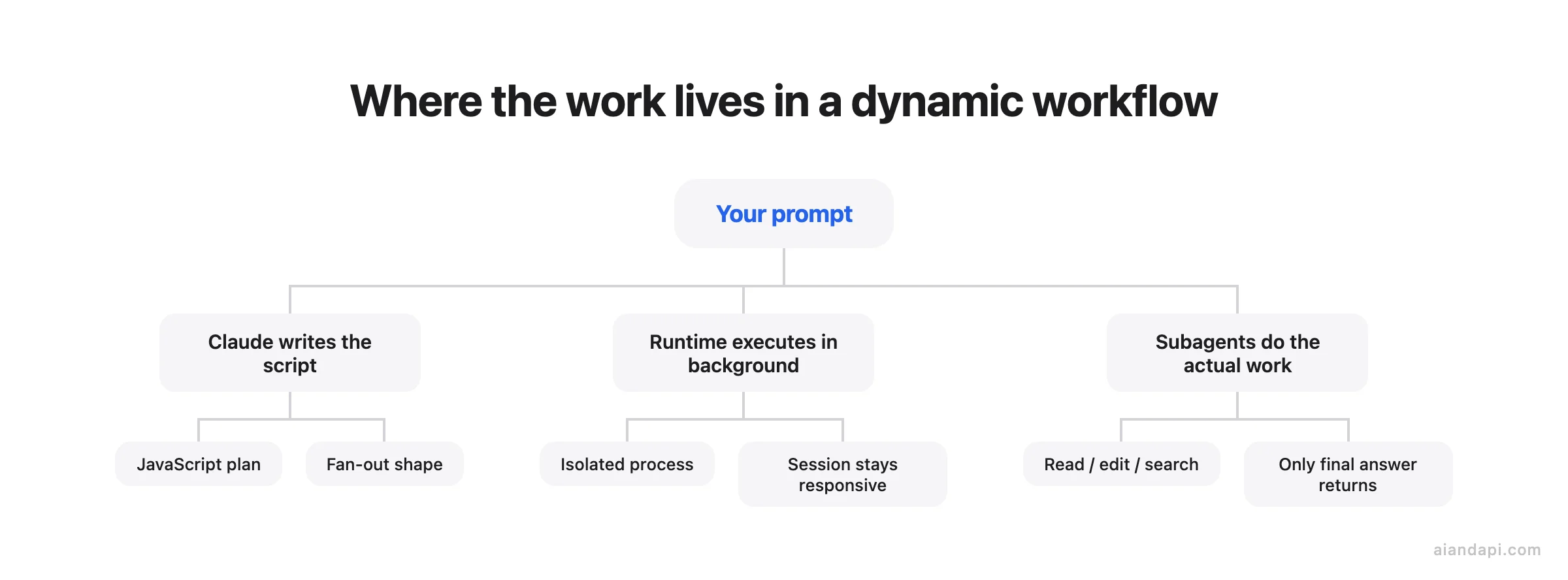
What this unlocks is a quality pattern, not just more compute. Claude plans the work, fans it out across subagents running in parallel from independent angles, has other agents try to refute what the first ones found, and keeps iterating until the answers converge. That is why the canonical use cases are codebase-wide bug sweeps, large migrations, and research questions that need cross-checking: work where one pass by one Claude is not enough, and a panel of agents arguing with each other is.
When a workflow earns its keep, and when it just burns tokens
But parallelism and adversarial cross-checking only justify themselves when the task is actually big enough to need them. Here is how to tell.
The rule of thumb is short: reach for a dynamic workflow when the task needs more agents than one conversation can coordinate, or when you want the orchestration written down as a script you can read, edit, and rerun.
The canonical "yes" cases are the ones the Claude Code docs lead with, and they share a shape. Many parallel units of work, or one big question that benefits from being attacked from several angles at once:
- A codebase-wide bug sweep, where you want every file checked against the same set of failure patterns rather than a sample.
- A 500-file migration that would take a single session an hour of sequential work and would blow through its context window halfway in.
- A research question where you want sources cross-checked against each other before any claim makes it into the answer.
- A hard plan worth drafting from several independent angles before you commit to one. Three planners working in parallel, then a comparison pass.
Concretely, where does the cutoff sit? Use three rough bands. If you'd reach for fewer than about five subagents (one or two parallel reads, a quick fan-out), stay in the conversation. Subagents are simpler and you keep the intermediate results in view (bswen). If you're sketching twenty or more parallel units, that's solid workflow territory; most real workflow tasks land in a 20-to-100-agent range, with bigger migrations climbing toward the 1,000-agent ceiling. The five-to-twenty gap is judgment: lean workflow if you also want adversarial cross-checking, or if the sequential version would consume a context window you need for something else. Time is the other axis. If a single session would chew through an hour of one-thing-after-another work, that's the signal that fan-out is doing real work, not just optics.
The "no" list is more important, because most of what people actually type into Claude Code on a normal day falls into it.
| Situation | Use this instead |
|---|---|
| Single function, one isolated bug, a quick refactor in one file | A plain Claude Code session, a workflow just adds setup overhead for no benefit |
| Simple question-and-answer, or a handful of small subtasks | Spawn a couple of subagents directly; the orchestration fits in one conversation |
| Repetitive operation with fixed instructions you run again and again | A skill, which is exactly what skills are for |
| Exploratory work where you want to see intermediate results and redirect | A normal session or subagents, so you can audit and intervene between steps |
The fourth row is the one people miss most often. If the task has separable components (research, drafting, formatting, validation) and you want to inspect what came out of each step before the next step uses it, subagents are the better fit because their intermediate results land in your conversation where you can read them.
Mid-execution oversight is the other quiet disqualifier. A workflow run is not a conversation you can interrupt with new instructions. You can pause it, stop it, or let it finish. You cannot tell it "wait, on second thought, look at this directory first." If the task is exploratory enough that you expect to redirect halfway through, you want the session-level back-and-forth, not the script.
Underneath all of this sits one question: does this task really need more compute? Most traditional coding tasks do not need a panel of reviewers. A workflow is the right answer when scale, parallelism, or repeatable cross-checking is doing real work for you. When it is not, the same task in a plain session finishes faster, costs less, and leaves you in the loop.
Subagents vs skills vs agent teams vs dynamic workflows
The "yes / no" question from the previous section hinges on one thing: where the plan lives. That is also the cleanest way to tell the four Claude Code primitives apart.
Claude Code ships four primitives that can all run a multi-step task. The criterion that actually separates them is one question: who holds the plan? (Anthropic docs). The table below lines them up on that axis and the rows that follow from it. Where intermediate results live, what carries the orchestration, how many agents one run can sustain, and what happens when the turn ends.
| Subagents | Skills | Agent teams | Dynamic workflows | |
|---|---|---|---|---|
| Who orchestrates | Claude, turn by turn | Claude, following the prompt | The lead agent, turn by turn | The script the runtime executes |
| Where intermediate results live | Claude's context window | Claude's context window | A shared task list | Script variables |
| What holds the orchestration | The worker definition | The instructions | The team definition | The orchestration code itself |
| Typical scale per run | A few delegated tasks per turn | Similar to subagents | A handful of long-running peers | Dozens to hundreds of agents per run |
| At turn boundary | Restarts the turn | Restarts the turn | Teammates keep running | Resumable in the same session |
Read down the "where intermediate results live" row and the mechanistic story falls out. With subagents, skills, and agent teams Claude is the orchestrator: it decides turn by turn what to spawn or assign next, and every result lands in a context window. With a workflow, the script holds the loop, the branching, and the intermediate results itself, so Claude's context holds only the final answer (concretely, only the return value of the script's default function, see bswen). That is why a workflow can spawn dozens or hundreds of agents in one run without exhausting the context window the other three primitives all share.
The same shift unlocks a quality pattern that the other three primitives cannot reproduce cleanly. Because the script, not Claude's turn, decides what runs and how results combine, you can have several independent agents draft answers to the same question and then a separate agent adversarially review their findings before any of it is reported. You can also draft a plan from several angles in parallel and weigh them against each other inside the script, instead of asking Claude to hold all of those drafts in one head. The result is more trustworthy than a single pass, and it's repeatable run after run because the pattern lives in code, not in a prompt you have to remember to write. Subagents, skills, and teams can all spawn helpers, but the orchestration has to fit in Claude's working memory each turn, which puts a hard ceiling on how elaborate the cross-checking can get.
Version, plan, and config prerequisites
Before any of the practical bits work, four boxes have to be checked. As of June 2026 the requirements are:
- Claude Code v2.1.154 or later. Anything older simply does not have the feature.
- A paid plan, or API access via Anthropic, Amazon Bedrock, Google Cloud Vertex AI, or Microsoft Foundry. Free-tier accounts are out. See the official requirements page for the current list.
- On Pro, the feature is off by default. Open
/configand flip the Dynamic workflows row on. Skip this and the trigger keyword does nothing. There is no error message, just silence. - The surface you work in is supported. Workflows run in the CLI, the Desktop app, the IDE extensions, non-interactive
claude -p, and the Agent SDK.
How to trigger a workflow
There are three ways to kick off a dynamic workflow, in increasing order of commitment: drop a keyword into a single prompt, flip a session-wide switch, or run one of the bundled workflow commands.
The per-prompt keyword
The lowest-commitment trigger is to include ultracode anywhere in your prompt. Claude Code highlights the keyword in your input and Claude writes a workflow script for the task instead of working through it turn by turn. Natural-language requests count too. Phrasing like "use a workflow" or "run a workflow" is treated as the same opt-in, so you don't have to remember the magic word.
ultracode: find every place we read process.env directly outside config/ and propose a fix
If you didn't mean it, dismiss the highlight before sending: press Option+W on macOS or Alt+W on Windows and Linux, or hit backspace while the cursor sits right after the highlighted keyword. There's no penalty for a stray keystroke as long as you catch it before you press Enter.
A version note for anyone following older tutorials: before Claude Code v2.1.160 the literal keyword was workflow, not ultracode. Natural-language requests work in both versions, so "run a workflow that..." is the safest phrasing if you're not sure what version your teammates are on.
/effort ultracode for the whole session
When you know the next hour of work is workflow-shaped (a large migration, an audit, anything where you'd want multiple agents on most prompts), set /effort ultracode once and Claude plans a workflow for each substantive task instead of waiting for you to ask. The setting combines xhigh reasoning effort with automatic workflow orchestration, and it's only offered on models that support xhigh effort; on smaller models the /effort menu won't list it.
Two things to watch. First, a single request can fan into several workflows in a row (one to understand the code, one to make the change, one to verify it), so an innocent-looking "fix the auth regression" prompt may launch three runs back to back. Second, ultracode resets when you start a new session, so leaving it on across days isn't a worry; forgetting it's on for the rest of today is.
Bundled commands like /deep-research
The fastest way to actually watch a workflow run is /deep-research, the built-in workflow Claude Code ships for investigating a question across many sources. It fans out web searches on several angles, fetches and cross-checks the sources it finds, votes on each claim, and returns a cited report with claims that didn't survive cross-checking filtered out. It requires the WebSearch tool to be available in your session.
A worked example from the docs:
/deep-research What changed in the Node.js permission model between v20 and v22?
Run that once on a low-stakes question before pointing ultracode at your own repo. You'll see the /workflows progress view, the per-agent token counts, and what a cited report looks like, without committing any code changes.
Writing the script: structure, fan-out, and editing what Claude wrote
Triggering a workflow tells Claude to write a script; the next question is what that script actually looks like and how to read or change it.
There are two ways to end up with a workflow script. The normal one is to describe a task and let Claude write it, using the ultracode keyword for a single prompt or /effort ultracode for the whole session. The other one is useful if you already have an orchestrator in another shape (a folder of subagent prompts, a skill that fans work out) and you point Claude at it and ask for a workflow that does the same thing. The second path matters more than it sounds, because it lets you migrate hand-rolled orchestration into something resumable without rewriting from scratch.
The trigger prompt itself can be short. A working example from the docs is ultracode: audit every API endpoint under src/routes/ for missing auth checks. Copy that shape, swap the path and the check.
What the file actually looks like
Every workflow file starts with a metadata literal (plain object, no variables, no function calls) followed by a default-exported async run function. The function gets agent and context as named parameters, and spawning a subagent is one agent() call that returns its result into a script variable. Minimal but real:
export const meta = {
  name: "audit-auth",
  description: "Check API routes for missing auth checks",
  phases: ["scan", "report"],
};

export default async function run({ agent, context }) {
  const result = await agent({
    prompt: "Scan src/routes/users.ts for endpoints without an auth guard. Return a JSON list of {path, method, line}.",
    name: "scan-users",
  });
  return result;
}
That return value is the only thing that ends up back in your Claude Code conversation. Everything else (the agent's prompt, its tool calls, its intermediate output) stays inside the runtime.
Two fan-out primitives
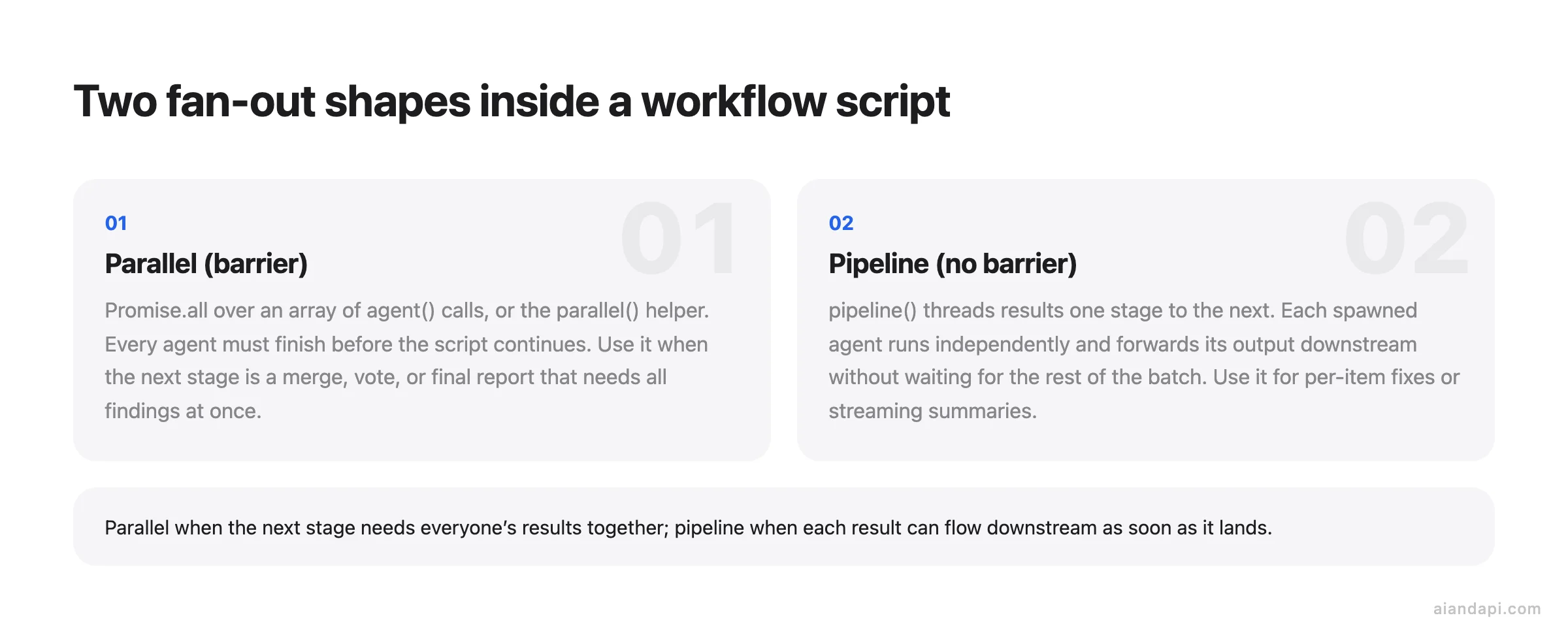
The script has two shapes for running more than one agent. Use a Promise.all over an array of agent() calls (or the equivalent parallel() helper) when you want a barrier, where every agent has to finish before the script continues:
const routes = ["users.ts", "orders.ts", "admin.ts", "billing.ts"];

const findings = await Promise.all(
  routes.map((file) =>
    agent({
      prompt: `Audit src/routes/${file} for endpoints missing an auth guard. Return JSON.`,
      name: `scan-${file}`,
    })
  )
);

return { findings };
Use pipeline() when there is no barrier. Each spawned agent runs independently and passes its result forward to the next stage without waiting for the rest of the batch to complete:
return pipeline(routes.map((file) => ({ file })))
  .map((item) => agent({ prompt: `Scan src/routes/${item.file}`, name: `scan-${item.file}` }))
  .map((finding) => agent({ prompt: `Write a fix patch for ${finding}`, name: "patch" }));
The rule of thumb: parallel when the next stage needs everyone's results together (a final report, a vote, a merge), pipeline when each result can be consumed downstream as soon as it lands (per-file fix patches, streaming summaries).
Reading and editing what Claude wrote
Every run writes its script to a file under your session's directory in ~/.claude/projects/, and Claude receives that path when the run starts. So the read/edit loop is concrete: ask "what's the workflow script path?", open the file, and you have the actual orchestration Claude built. You can diff it against a previous run's script to see why behaviour changed, edit it by hand to tighten a prompt or swap a stage, and then ask Claude to relaunch from the edited version. The script is the plan in readable form, sitting as a real file on disk rather than hidden state inside the conversation.
Saving a workflow and rerunning it with arguments
Once a run does what you want, keep it. In /workflows, select the run and press s. The save dialog offers two locations (Tab toggles between them, Enter saves):
.claude/workflows/in the project, committed with the repo, so anyone who clones it gets the same/<name>command.~/.claude/workflows/in your home directory, available in every project, visible only to you.
If a project workflow and a personal workflow share a name, the project one wins. After saving, invoke it as /<name> in any future session.
Saved workflows take input through an args parameter that the script reads as a global called args. Claude passes it as structured data (arrays stay arrays, objects stay objects), so the script can call .map(), .filter(), or args.targets directly without parsing. If you don't pass anything, args is undefined inside the script. A canonical invocation:
Run /triage-issues on issues 1024, 1025, and 1030
What the runtime is actually doing
The runtime runs the script in an isolated environment, separate from your conversation. Intermediate results stay in script variables instead of landing in Claude's context. That's why the conversation doesn't bloat the way it would if Claude were orchestrating turn by turn. The script itself has no direct filesystem or shell access; the agents read, write, and run commands while the script coordinates them.
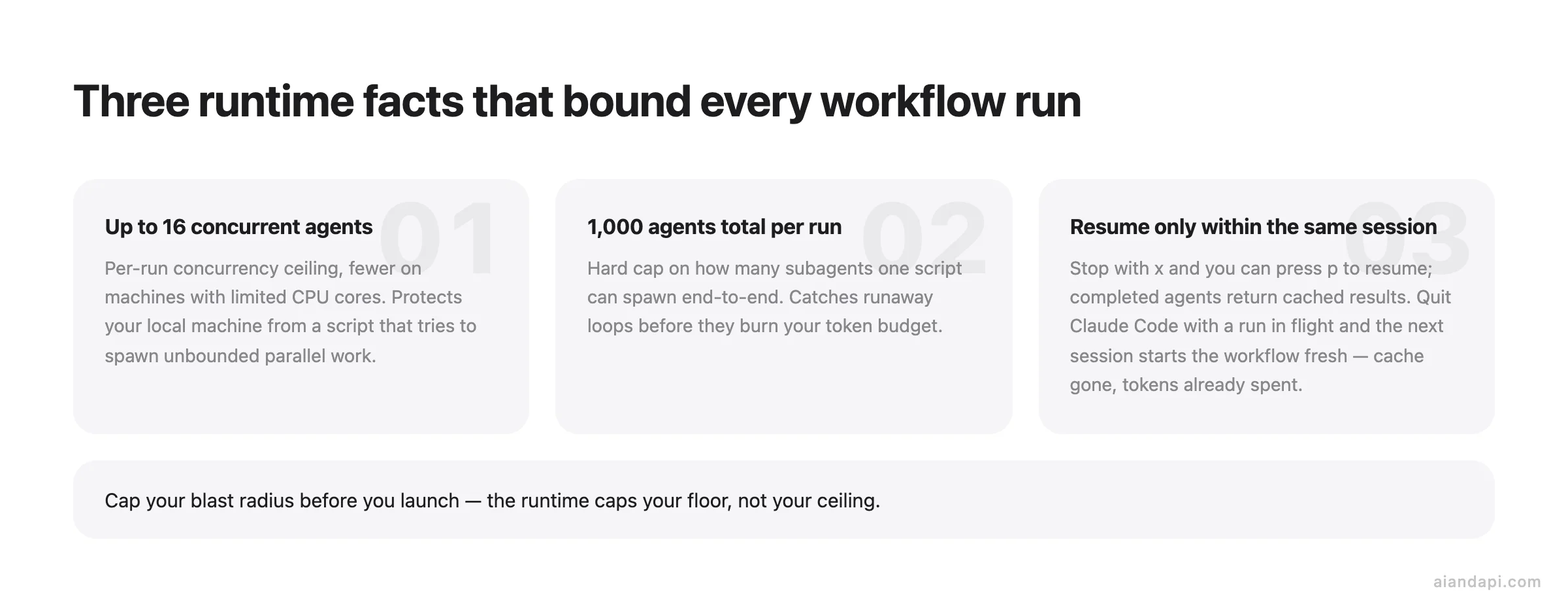
Two hard caps bound a run: up to 16 concurrent agents (fewer on machines with limited CPU cores) and 1,000 agents total per run. Treat them as guardrails. The concurrency ceiling protects your local machine, the total ceiling catches runaway loops before they burn your budget.
Resume, and the exit gotcha that bites everyone
Stop a run with x and you can pick it back up: completed agents return their cached results, the rest run live. Resume from /workflows by selecting the run and pressing p, or just ask Claude to relaunch the same script.
The trap: resume works only within the same Claude Code session. Quit Claude Code with a workflow still in flight and the next session starts it fresh, with cached results gone and tokens already spent. If a long run is going and you need to step away, leave the session open.
There's no mid-run user input either. The only thing that can pause a run is an agent permission prompt. If you need a human sign-off between stages, split the work into separate workflows and approve each before triggering the next. The script coordinates agents, not you.
Watching it run
Workflows run in the background, so the session stays responsive. Type /workflows any time to list running and completed runs, then open one to see the progress view, with each phase showing its agent counts, token totals, and elapsed time. Inside the view:
p: pause or resume the runx: stop the selected agent, or the whole run when focus is on the runr: restart the selected running agent
This is also where you'd stop a run that's spending more than you expected. Completed work is preserved as cached results, so stopping early isn't wasted.
Permissions, the launch prompt, and what subagents are actually allowed to do
This section covers what a workflow is allowed to do, which becomes critical the moment you point one at a real codebase.
Before any run starts, Claude Code shows a launch prompt with the planned phases, a token-usage caution, and four options: Yes to run it, Yes and don't ask again for <name> in <path> to whitelist this workflow in the current project, View raw script to read it first, and No to cancel. Two keys are worth memorising: Ctrl+G opens the planned script in your editor, and Tab lets you tweak the prompt before launch. In the Desktop app the prompt becomes an approval card with Once / Always / Deny and the progress view docks into the Background tasks side pane.
How often you see that prompt depends on your session's permission mode:
| Mode | When the launch prompt fires |
|---|---|
| Default, acceptEdits | Every run, unless you picked "don't ask again" for this workflow in this project |
| Auto | First launch only; a Yes is stored in user settings; skipped entirely when ultracode is on |
Bypass permissions, claude -p, Agent SDK | Never, the run starts immediately |
The single fact worth burning in: your session's permission mode only controls that launch prompt. The subagents the workflow spawns always run in acceptEdits and inherit your tool allowlist regardless of what mode you're in. File edits get auto-approved inside a workflow. But shell commands, web fetches, and MCP (Model Context Protocol) tools that aren't on your allowlist can still interrupt you mid-run, which is exactly when you don't want to be babysitting a terminal.
The practical move before a long run: add the commands the agents will need to your allowlist up front. Two places hold the allowlist, and which you pick depends on who else needs it. Inside a session, /permissions opens an editor over the live rule set; add Bash(rg:*) or Edit and it persists for next time (Claude Code permissions docs). For a rule set you want committed with the repo, edit .claude/settings.json and add patterns under permissions.allow; for personal-only rules, use ~/.claude/settings.json or .claude/settings.local.json. The evaluation order is deny, then ask, then allow, so a managed deny always beats a local allow.
A sensible default allowlist for an audit-style workflow (read-only inspection, no destructive shell calls) is Read, Grep, Glob, Bash(rg:*), Bash(git diff:*), and Bash(git log:*). Add Bash(git grep:*) if you grep through history. Leave Edit and Write off until the workflow actually needs to change files; once it does, scope them with path patterns rather than blanket allow. In claude -p and the Agent SDK there's no one to prompt anyway, so tool calls just follow these configured rules silently.
The cost reality of a workflow run
Permissions decide what a workflow can touch; cost decides whether you can afford to find out.
A workflow spawns many agents in parallel, so a single run can use meaningfully more tokens than working through the same task in a normal conversation, and those tokens count toward your plan's usage and rate limits just like any other session (Claude Code docs). That is the trade you accept the moment you type ultracode: you are buying parallel breadth and adversarial cross-checking with tokens.
Order-of-magnitude numbers help. A large migration may run 10x to 50x the tokens of a normal session, with individual subagents typically consuming 50K to 250K tokens each. A 50-file audit running one agent per file plus a coordinator and a reviewer is roughly 50 to 250 agent-runs once retries are counted. Call it 5M to 12M tokens in the common case, more if recovery kicks in. At current paid-plan pricing that lands a full codebase audit in the $50-150 ballpark (the figure is current as of 2026-06). The takeaway is direction, not a quote: a workflow is one to two orders of magnitude more expensive than the same audit attempted in one session, and that's the price you pay for finishing in minutes instead of hours, and for getting cross-checked answers instead of one Claude's best guess.
The failure mode that surprises people is not the happy path. A workflow that hits a snag mid-run (a flaky tool call, a subagent that misreads its prompt, a phase that produces unusable output) can spend roughly five times more tokens recovering than it would have spent failing cleanly, according to MindStudio's analysis of when workflows are worth the spend. That ratio is why scope-bounding before launch matters more than yanking the cord halfway through. Once a run is rolling, recovery work has already started compounding.
The scope-and-watch loop, in priority order
Before reaching for clever model routing, do the boring things first. They cost nothing and catch the largest mistakes.
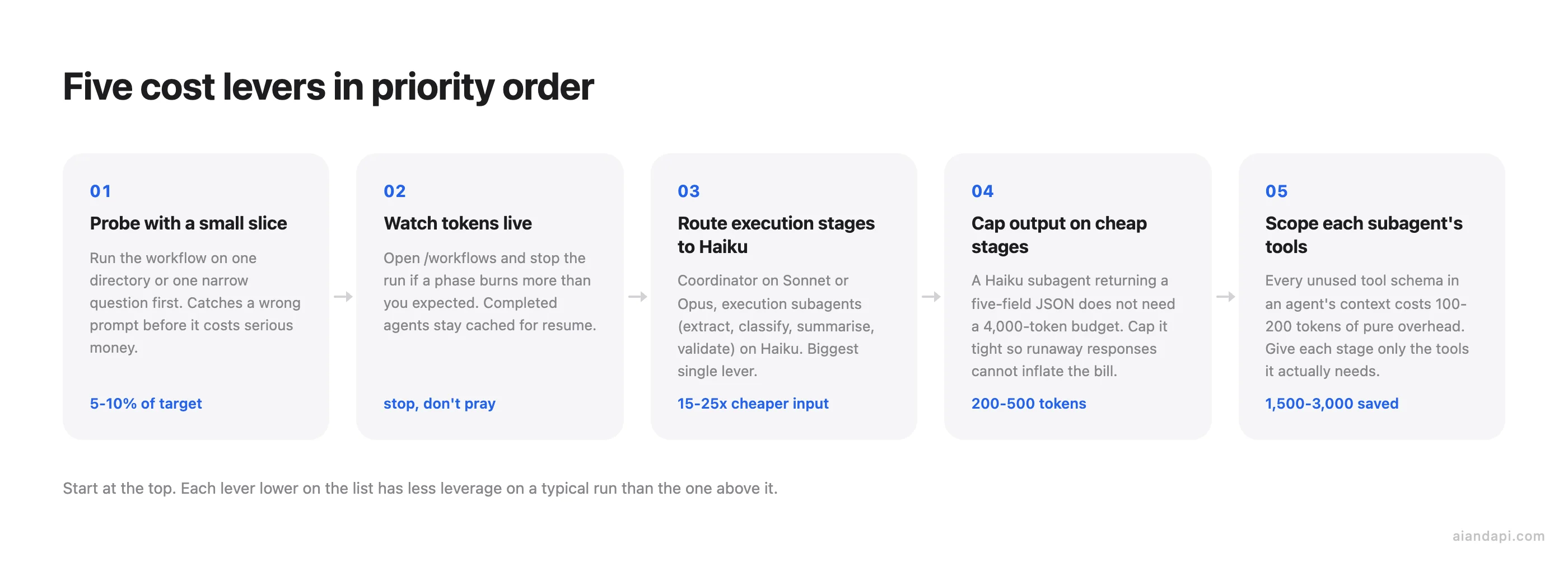
- Probe with a small slice. Run the same workflow on one directory instead of the whole repo, or on one narrow question instead of a broad one. In our experience, a workable starting point is 5 to 10 percent of the target files, enough that the per-file work dominates the orchestration overhead, small enough that a misfire costs cents not dollars. To extrapolate to the full run, take the per-agent average from the probe's token total, multiply by the file count you'll really cover, then add the coordinator and reviewer agents back in (those stay roughly fixed as the file count grows). The result is a tighter estimate than any guess you can make from the prompt, and on a one-directory probe of a multi-directory repo, it's usually within 20 to 30 percent of what the full run actually spends, with recovery on a flaky stage being the main thing that blows the estimate.
- Watch token usage live. The
/workflowsview shows each agent's token usage as the run progresses. If a phase is burning more than you expected, you can stop the run there without losing completed work. Finished agents stay cached, so a resume picks up where you left off rather than restarting from zero.
A small-slice probe catches "this prompt is wrong" before it costs anything serious. The live /workflows view catches "this phase is going sideways" before the recovery multiplier kicks in. Beyond that, the 16-concurrent and 1,000-total runtime caps act as the hard ceiling on what any single misbehaving script can spend.
Model routing is the biggest lever you have
Every agent in a workflow uses your session's model unless the script explicitly routes a stage to a different one. If you usually drop down to a smaller model for routine work, check /model before a large run; otherwise the small-model choice from yesterday silently propagates across hundreds of subagents today.
A bigger saving is to tell Claude, when you describe the task, which stages do not need the strongest model. Coordination, planning, and judgement calls stay on Sonnet or Opus. Execution work (extracting structured fields from a document, classifying items into known buckets, summarising short passages, validating output against a checklist) runs on Haiku.
The reason this works is the per-token gap. Haiku costs roughly 15 to 25 times less per input token than Opus, per MindStudio's cost playbook (the multiplier is current as of 2026-06). On a workflow where the coordinator spawns 30 extraction subagents, swapping those 30 from Opus to Haiku does more for your bill than any other single change.
A workable shape:
// inside your run() function
const plan = await agent({
  prompt: "Read the spec and break it into extraction tasks",
  name: "coordinator",
  // uses session model (Sonnet or Opus)
});

const extracted = await parallel(
  plan.tasks.map((task) => agent({
    prompt: `Extract the fields listed in ${JSON.stringify(task.fields)} from ${task.path}`,
    name: `extract-${task.id}`,
    model: "claude-haiku-4-5",
    maxOutputTokens: 300,
  }))
);
Two cheap levers people miss
Cap the output on extraction and validation agents. A Haiku subagent that is supposed to return a JSON object with five fields does not need a 4,000-token budget. Cap it at 200 to 500 tokens. The agent finishes faster, you pay only for what you needed, and a runaway response (the model deciding to "explain its reasoning at length") cannot inflate the bill.
Scope each subagent's tool access to its stage. This one is invisible until you measure it. Handing 15 tool schemas to every agent call adds roughly 1,500 to 3,000 tokens of pure overhead per call, according to the same MindStudio playbook. An extraction agent that only reads a file does not need the shell tool, the web fetch tool, or your project's MCP (Model Context Protocol) servers in its context. The script gives each subagent the smallest tool set it needs, and the overhead drops with it.
These two combine well: a Haiku agent with a 300-token output cap and a two-tool allowlist is the workhorse pattern of a cost-controlled workflow.
One more warning on ultracode itself
With /effort ultracode on, every substantive request (not just the big one you had in mind) gets planned as a workflow. That means each request uses more tokens and takes longer, because Claude is fanning out, cross-checking, and converging on every prompt you type, including the small ones. If you turned it on for a single hard task, drop back to /effort high the moment you are done. Ultracode stays on for the whole session until you change it, and the extra token spend adds up quickly.
Debugging a stuck workflow and reading other people's
After cost, the last operational concern is what to do when a workflow misbehaves, and where to read other people's workflows when you want to go further.
/workflows is the primary debugger. Open the progress view, pick the phase that looks wrong, and drill in to see every agent in that phase and what each one returned. From there, drill one level deeper into an individual agent to read its prompt, its recent tool calls, and its result; that combination usually tells you whether the agent got the wrong instructions, called the wrong tool, or hit a bad input. When you don't want to leave the prompt you're typing, use the task panel below the input box instead: it shows a one-line progress summary while the run is going, press the down arrow to focus it, then Enter to expand.
Before you intervene, let the runtime do its own retry. If an agent fails (an MCP (Model Context Protocol) server drops mid-call, a transient network blip, a single tool call returns garbage), Claude Code reattempts that agent up to three times before giving up. A "failed" status that flips back to "running" twice and then succeeds is the normal recovery path, not a bug. Set this expectation before you reach for the stop key, or you'll kill runs that would have healed themselves.
When retry isn't enough, the manual lever is X inside /workflows: skip an agent that's stuck or no longer relevant, or retry one whose result you don't trust. Combine that with the p (pause / resume) and x (stop selected agent or whole run) keys from the runtime section and you have the full mid-run toolkit. Pause to look, X to surgically replace one agent's output, stop only when you're done.
For reading real workflows or extending the system, three repositories cover three different needs:
- peymanvahidi/awesome-claude-dynamic-workflows: a documentation collection of how Claude's dynamic workflows work, with structure and orchestration patterns. Read this first if you want to understand the format before writing anything.
- ray-amjad/claude-code-workflow-creator: a Claude Code skill (not a workflow itself) that encodes the file format, the judgement calls, and the authoring procedure, so when you ask Claude to create a workflow for a task you get back a correct, runnable file instead of something that needs fixing.
- QuintinShaw/pi-dynamic-workflows: a fuller Claude Code-style implementation with real model routing, journaled resume, git-worktree isolation, cost accounting, an interactive
/workflowsterminal UI, an/ultracodestanding opt-in, and deep research. Useful as a reference if you want to see how every piece described in this article connects in source code.
FAQ
Can I disable dynamic workflows if I don't want them available?
Yes. The quickest way is the Dynamic workflows toggle in /config, the same row Pro users enable it from. For a more persistent setting, add "disableWorkflows": true to ~/.claude/settings.json. You can also set the environment variable CLAUDE_CODE_DISABLE_WORKFLOWS=1, which Claude Code reads at startup. For org-wide rollouts, the same "disableWorkflows": true key works in managed settings, and there's a toggle at claude.ai/admin-settings/claude-code. When disabled, bundled workflow commands like /deep-research are unavailable, the ultracode keyword no longer triggers workflow mode, and ultracode is removed from the /effort menu.
How many subagents is "a couple" before I should switch to a workflow?
As a rough rule of thumb, up to three or four subagents is comfortably "spawn them directly" territory: the orchestration fits in one conversation and you can read each result as it lands. Past five or six, you're starting to lose track of which subagent owns what, and the worker definitions begin to clutter the turn. By the time you're sketching eight or more parallel units, a workflow pays for itself even before you count the cross-checking. The script keeps the bookkeeping out of your context window, where the parallel work would otherwise drown the conversation.
Why does a snagged workflow spend roughly 5x more tokens recovering than failing cleanly?
The rough breakdown goes like this. First, the runtime retries each failing agent up to three times before giving up, so three attempts at the same prompt instead of one. Second, when a phase produces unusable output, downstream stages that already started may re-run against the corrected upstream result, so the cost of one bad phase propagates forward. Third, agents that retry have to re-read their context (a file, a prompt, an upstream finding) and that input-token cost gets paid again on each attempt. None of these is individually large, but a workflow with several flaky stages compounds them across dozens of agents.
If I route extraction stages to Haiku and it misclassifies something, how would I notice?
Not by reading the final report. By the time misclassifications land there they've been smoothed into the summary. The pattern people use is a builder-validator chain: a Haiku agent produces the extraction, a second agent (Haiku or Sonnet) re-reads the same input against a checklist and flags disagreements, and the script only forwards results both passes agree on (MindStudio on the builder-validator chain). A cheaper version is sample-based: have a Sonnet agent spot-check a random subset of Haiku results and report disagreement rate at the end; a reasonable starting point is 5 to 10 percent. If the disagreement rate is above a threshold you set, rerun that phase on Sonnet.
If I accidentally quit Claude Code mid-run, can I recover the cached agent results from ~/.claude/projects?
No. The conversation transcript itself does persist on disk under ~/.claude/projects/<encoded-cwd>/ and you can resume the session, but the workflow runtime's cached agent results live in the runtime process state, not in the session JSONL. When Claude Code exits, the runtime exits with it, and the next session starts the workflow fresh. The transcript will tell you what the run was doing, which is useful for retriggering it; the cached intermediate results are gone.
Between the three linked repos, which should I clone first if I just want to read a working workflow end-to-end?
QuintinShaw/pi-dynamic-workflows for reading a full implementation top-to-bottom: model routing, resume, cost accounting, and the TUI are all wired together in source you can step through. If you instead want to write your first workflow and want correctness more than reading material, install ray-amjad/claude-code-workflow-creator as a skill; it encodes the file format and the judgement calls, so the workflow Claude produces is runnable without hand-fixing. peymanvahidi/awesome-claude-dynamic-workflows is the lookup index, not the reading material: open it second when you have a specific question.
When does a repeatable task graduate from a saved workflow into a skill?
Different question, different answer. A skill is a set of instructions Claude follows; it's the right shape when the task is "do X to whatever I point you at" and the work fits in one Claude's head: code reviews, writing migrations, formatting changelogs. A saved workflow is an orchestration script; it's the right shape when the task is "fan this out across many things and cross-check the results" and a single Claude couldn't hold the whole job. If you find yourself wanting to use a skill on every file in a repo at once, that's the moment to turn it into a workflow. If you find your workflow's first stage is just one Claude doing one prompt, that's the moment to demote it to a skill.